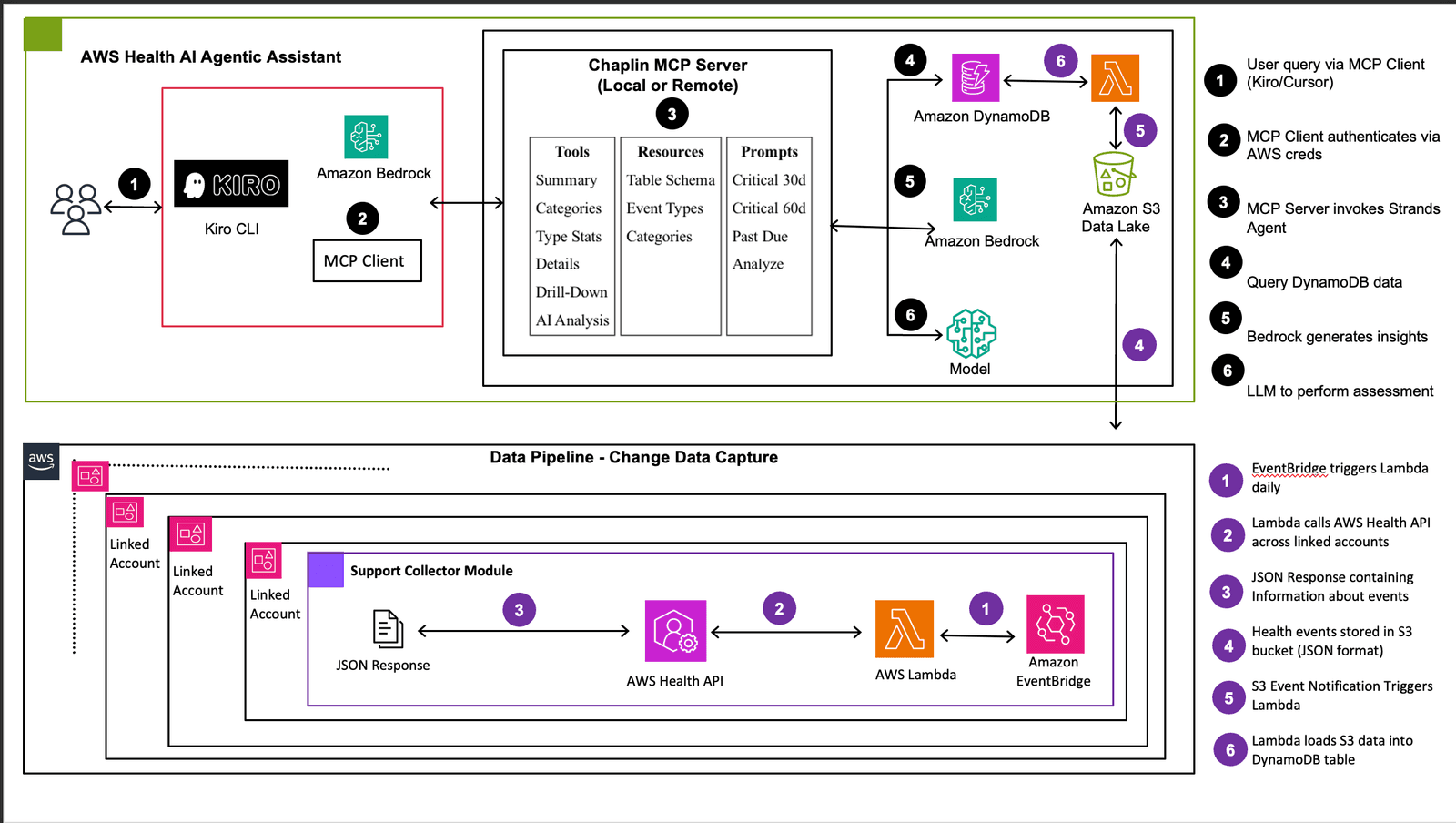
TL;DR: Use the open‑source Chaplin framework, connect it to Amazon Bedrock via the Model Context Protocol, and deploy a self‑service dashboard that turns AWS Health events into clear, actionable recommendations.
Key takeaways
- Chaplin (Customer Health and Planned Lifecycle Intelligence Nexus) is an open‑source stack that couples AWS Health data with Bedrock agents.
- The Model Context Protocol (MCP) lets agents query health data in real time.
- Deploying the solution requires an AWS account, Bedrock access, and basic IAM, Lambda and CloudFormation knowledge.
- Pro tips include using Bedrock Guardrails, version‑controlled prompts, and cost‑monitoring via OpenAI spend controls concepts.
- The resulting dashboard can surface actionable insights such as upcoming service deprecations, outage predictions, and remediation steps.
Problem: Unstructured AWS Health data stalls rapid response
Every day, AWS publishes health events—service advisories, scheduled maintenance, and outage notices. While the raw feed is comprehensive, most teams receive it as a dense JSON stream or email digest. Sifting through that data to pinpoint which events affect a specific portfolio, estimate impact, and decide on remediation can take hours. The delay reduces the value of the health information and can lead to missed mitigation windows.
Prerequisites: What you need before you start
To follow this guide you should have:
- An AWS account with permissions to create IAM roles, Lambda functions, CloudFormation stacks, and access to Amazon Bedrock.
- Basic familiarity with AWS CLI or the console, and a working Python 3 environment.
- Access to the Chaplin GitHub repository (the open‑source solution referenced by the AWS Machine Learning Blog).
- Bedrock model access (e.g., Claude, Titan, or other supported foundation models) and the ability to enable the Model Context Protocol.
- Optional: a monitoring account for cost and usage analytics, inspired by OpenAI’s recent spend‑control features.
If any of these items are missing, pause the guide and provision them first. The steps assume you can run CloudFormation templates and invoke Lambda functions.
Step‑by‑step: Building the self‑service health analytics platform
Below is a practical workflow that mirrors the implementation described by the AWS Machine Learning Blog on June 25, 2026.
- Clone the Chaplin repository. Open a terminal and run
git clone https://github.com/aws-samples/chaplin. The repo contains the core agents, MCP adapters, and CloudFormation templates. - Configure AWS credentials. Ensure your CLI is set to the target account:
aws configurewith an IAM user or role that hasAdministratorAccessfor the initial deployment. - Set up Bedrock model access. In the Bedrock console, request access to the desired foundation model. Record the model ID; you will reference it in the MCP configuration file (
mcp-config.json). - Enable the Model Context Protocol. According to the AWS blog, Chaplin agents communicate with Bedrock through MCP. Edit
mcp-config.jsonto include the model ARN and the allowed data schemas (AWS Health event schema, account metadata, etc.). - Deploy the infrastructure. From the
deploymentfolder, runaws cloudformation deploy --template-file chaplin-stack.yaml --stack-name chaplin‑health‑analytics --capabilities CAPABILITY_NAMED_IAM. The stack creates a Lambda layer for the agents, an API Gateway endpoint, DynamoDB tables for event storage, and IAM roles with least‑privilege permissions. - Ingest AWS Health events. Enable the AWS Health API for your organization and configure the
HealthIngestorLambda (included in the repo) to poll theDescribeEventsendpoint every five minutes. The Lambda writes raw events to the DynamoDBHealthEventstable. - Connect agents to the event store. The Bedrock‑backed agents read from DynamoDB via the MCP adapter. Each agent is defined in
agents/and includes a prompt template that asks the model to translate an event into a recommended action (e.g., “What steps should we take for a scheduled RDS maintenance window?”). - Expose a self‑service UI. Deploy the static web app located in
frontend/to an S3 bucket with CloudFront distribution. The UI calls the API Gateway endpoint to request insights for a selected account or service. - Test the end‑to‑end flow. Open the UI, select an AWS account, and request insights. The UI should display a list of recent health events, each paired with a concise recommendation generated by the Bedrock agent.
- Iterate on prompts. If the recommendations are too generic, refine the prompt templates in
agents/prompt.txt. Version‑control the prompts and redeploy the Lambda layer to propagate changes.
When all steps succeed, you have a fully functional, self‑service analytics dashboard that turns raw health data into actionable guidance, exactly as demonstrated in the AWS Machine Learning Blog post.
Pro Tips: Fine‑tuning the solution for production
- Guardrails for safety. Use Bedrock’s built‑in guardrails to prevent the model from generating unsafe or misleading remediation steps.
- Cost awareness. Borrow ideas from OpenAI’s June 18, 2026 spend‑control announcement: tag Bedrock usage with a cost allocation tag and set up CloudWatch alarms when daily spend exceeds a threshold.
- Versioned prompts. Store prompt files in a version‑controlled S3 bucket. Include the prompt version in the DynamoDB record so you can audit which prompt produced a given recommendation.
- Multi‑region resilience. Deploy the CloudFormation stack in at least two regions and use Route 53 health checks to route UI traffic to the healthiest endpoint.
- Feedback loop. Add a “thumbs up/down” widget to the UI. Store feedback in a separate DynamoDB table and schedule a nightly Lambda to fine‑tune prompts based on user ratings.
Real‑world impact: Turning insights into faster remediation
Healthcare organizations that run critical workloads on AWS can benefit immediately. By surfacing actionable recommendations, Chaplin reduces the mean time to understand a health event from hours to minutes. For example, a scheduled upgrade to an Amazon RDS instance that would otherwise require manual cross‑team coordination can be highlighted with a one‑click remediation plan generated by the Bedrock agent. The self‑service nature means any engineer with appropriate IAM permissions can query health data without involving a centralized ops team.
Because the solution is open source, teams can extend the agent library to cover compliance checks, cost‑optimization alerts, or even patient‑data‑handling policies. The Model Context Protocol ensures that future Bedrock models can be swapped in without rewriting the integration layer, protecting the investment as the underlying AI improves.
📎 Related Articles
Build Production‑Grade AI Agents for Financial Compliance: Stripe’s Playbook • Build Production‑Grade AI Agents for Finance Compliance • Deploy Local AI Agents on RTX PCs & DGX Spark • Patronus AI’s $50M Digital Worlds for Stress‑Testing Agents – Who Should Try Them? • AWS launches Continuum and Context to secure AI agents • How to Turn Your SOC Analyst Into an AI Agent • How to Deploy Agentic Gemini Models After I/O 2026
Explore related AI topics