Problem: Your Day Is Filled With Repetitive Tasks
Most professionals spend hours each week sorting emails, hunting for local events, and stitching together quick briefs. The mental load of constantly switching between inbox, calendar, and web searches leaves little room for deep work. According to TechCrunch AI, Google’s new 24/7 AI assistant Gemini Spark promises to automate everyday chores, but many users aren’t sure how to turn that promise into a routine.
Prerequisites: What You Need Before Turning On Gemini Spark
- Google account – Gemini Spark lives inside Google’s ecosystem, so a personal or work Google account is required.
- Device with internet access – The assistant runs in the cloud, so any smartphone, tablet, or computer that can reach Google’s servers will work.
- Access to Gemini Spark – The product is a separate offering from Google’s other AI tools. You’ll need to locate the Gemini Spark app or web portal in your Google services list.
- Basic comfort with natural‑language prompts – Gemini Spark responds to conversational input, so typing or speaking a clear request is all that’s needed.
Once those items are in place, you’re ready to start.
Step‑by‑Step: Getting Gemini Spark to Work for You
1. Activate the Assistant
Open the Gemini Spark interface from your Google apps menu. The first screen asks you to confirm that you want a 24/7 AI companion. Accept the terms, grant the necessary permissions (access to Gmail and Calendar), and click “Enable.” According to TechCrunch AI, the assistant is designed to stay active in the background, ready to respond at any hour.
2. Set Your Preferred Interaction Mode
Gemini Spark supports both typed and spoken queries. In the settings pane, toggle “Voice activation” if you want to trigger the assistant hands‑free. For most desktop users, leaving it on “Text only” reduces accidental wake‑ups.
3. Teach It Your Inbox Priorities
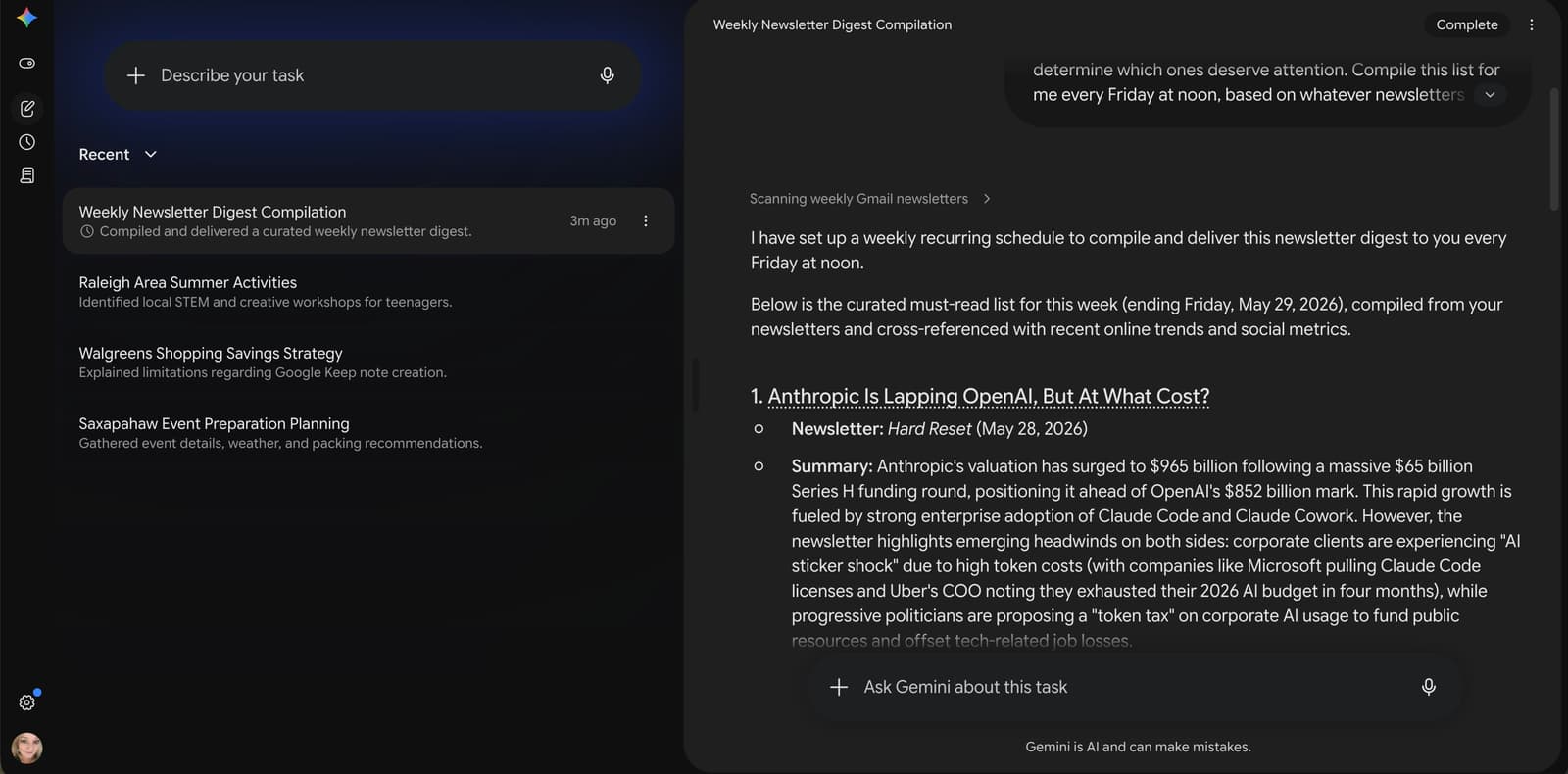
One of the first use cases highlighted by TechCrunch AI is an automatic “inbox summary.” To enable this, type or say, “Give me a daily email briefing at 8 am.” Gemini Spark will scan your Gmail, surface the most important threads, and deliver a concise bulleted list each morning. You can refine the output by adding qualifiers such as “only work‑related messages” or “exclude newsletters.”
4. Use It to Plan Local Events
Another practical demo from the same source shows Gemini Spark handling “local event planning.” Ask the assistant, “Find a coffee‑shop meetup for three people in downtown Seattle next Friday at 3 pm.” Gemini Spark will pull venue options, check availability, and even draft a calendar invite. If you have a preferred venue, simply add “at XYZ Café” and the assistant will confirm the reservation details.
5. Review and Refine the Output
After each interaction, Gemini Spark presents its answer in a chat‑style window. If something looks off, reply with a correction – “That’s the wrong date, I meant Thursday,” – and the assistant will adjust. This iterative loop helps the model learn your preferences without any manual configuration.
6. Schedule Recurring Briefings
For ongoing productivity, set a recurring command like “Summarize my inbox every weekday at 9 am.” Gemini Spark will then automate the process, sending you a fresh digest each day. Over time you’ll notice fewer “email‑check” interruptions and more focused work blocks.
Pro Tips: Getting the Most Out of Gemini Spark
- Combine with Google Calendar – When you ask Gemini Spark to plan an event, it automatically creates a Calendar entry. Open the entry afterward to add notes or attach files.
- Leverage Natural Language – The assistant understands context. Try “What’s on my agenda for tomorrow?” instead of manually listing dates.
- Keep Privacy Settings Tight – Gemini Spark accesses your email and location to be useful. Review the permission screen regularly and revoke any access you no longer need.
- Use Short, Specific Prompts – The more precise the request, the cleaner the answer. “Find a vegetarian brunch spot near my office for four people Saturday morning” yields better results than “Find food places.”
- Experiment Early in the Day – Since the assistant is always on, testing a new prompt in the morning lets you see how it integrates with the rest of your schedule.
Gemini Spark is still a separate product from Google’s broader AI suite, and its long‑term roadmap isn’t fully explained. Nevertheless, the early hands‑on experience reported by TechCrunch AI shows that the assistant can already shoulder routine tasks, giving you back time for higher‑value work.
📎 Related Articles
AI Tools for Work: Build a Daily Automation Workflow • How to Deploy Agentic Gemini Models After I/O 2026 • Robinhood Plans AI Agents to Trade and Spend for Users • How to Evaluate Deep Agents with LangSmith on AWS • How to Evaluate Deep Agents on AWS with LangSmith • How to Leverage OpenAI’s Gartner‑Recognized Enterprise Coding Agent • How to Deploy Enterprise Coding Agents After Gartner Names OpenAI a Leader • How to Deploy OpenAI’s Enterprise Coding Agent After Gartner’s Leader Announcement