Problem
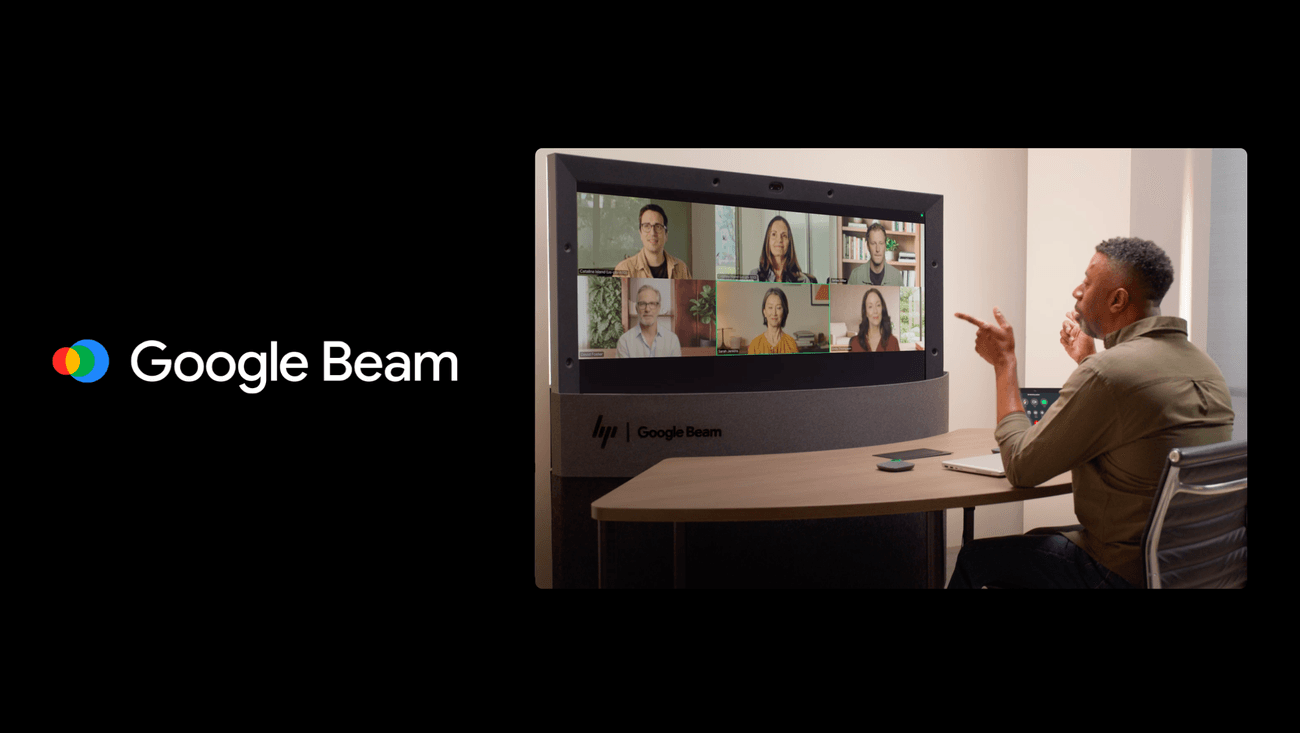
Hybrid meetings often feel like two separate rooms talking through a thin wall. Video feeds are small, audio can be muffled, and remote participants miss the subtle cues that make in‑person conversations flow. The result is a sense of exclusion for those dialing in, and a loss of collaboration momentum for the whole team.
According to the Google AI Blog, the new experiment for Google Beam aims to solve exactly that gap by delivering true‑to‑life size video and sound. When participants appear at life‑size scale with high‑fidelity audio, the meeting feels less like a broadcast and more like a shared space.
Prerequisites
Before you can test the experiment, make sure you meet the following conditions:
- A Google Workspace account that includes access to Google Beam.
- A device that supports the Beam experience – typically a modern laptop or desktop with a webcam and speakers.
- Stable broadband connection (at least 10 Mbps download and upload is recommended for high‑quality video).
- The latest version of the Google Beam client, as the experiment is rolled out to recent builds only.
If any of these items are missing, the experiment will either not appear in your interface or will perform poorly, defeating its purpose.
Steps
- Enable the experiment. Open Google Beam, click the settings gear, and look for the “Hybrid Meeting Experiment” toggle. Turn it on. The option appears only for accounts that have been invited to the test, as noted in the recent Google AI Blog post.
- Prepare your environment. Position your webcam at eye level and ensure the background is well lit. True‑to‑life size rendering works best when the camera captures a clear, full‑body view of each participant.
- Check audio quality. Use external speakers or a headset for the best sound reproduction. The experiment promises “true‑to‑life … sound,” so a high‑fidelity audio chain helps you experience it fully.
- Invite participants. Send a regular Google Meet link. When participants join through Beam, they will automatically see the life‑size video feed if they have also enabled the experiment.
- Start the meeting. Once everyone is in, you’ll notice the video windows expand to life‑size proportions. Speak naturally; the audio engine processes your voice at a higher resolution, making remote voices feel present.
- Monitor performance. If you see lag or pixelation, pause the experiment via the settings menu and revert to standard video until the network stabilizes.
Pro Tips
- Use a wired Ethernet connection. Wi‑Fi can introduce jitter that degrades the life‑size experience.
- Limit the number of simultaneous video streams. The experiment shines with small groups (3‑5 people). Larger rooms may strain bandwidth.
- Leverage natural lighting. Over‑exposed or dark rooms cause the AI to upscale poorly, reducing the realism of the life‑size view.
- Record a short test clip. Capture a 30‑second segment before the real meeting to verify that video size and audio fidelity meet expectations.
- Encourage participants to enable the experiment. The benefit is mutual; when everyone is on the same page, the meeting feels truly inclusive.
By following these steps and tips, you can transform a routine hybrid call into a conversation that feels as if everyone is sitting around the same table. The experiment is still early, but the early feedback highlighted on the Google AI Blog suggests a noticeable lift in engagement and connection.
📎 Related Articles
How Virgin Atlantic Accelerated Its App Release with Codex • How Missouri Communities Can Tap New AI and Energy Investments • How AdventHealth Uses OpenAI to Boost Whole-Person Care • How to Catch Up on Google I/O 2026 Dialogues Stage Highlights • Google Beam Tests True‑to‑Life Hybrid Meetings • How Google’s Missouri Investment Aims to Boost Jobs and Clean Energy • How AdventHealth Is Using OpenAI to Give Patients More Time with Doctors • How AdventHealth Uses ChatGPT to Cut Admin Work and Boost Patient Time